Safe Mode switches off every snippet at once. It is the way back in when a snippet has broken your site and automatic deactivation could not identify it, or when you simply want all custom code out of the way for a moment while you diagnose something else.
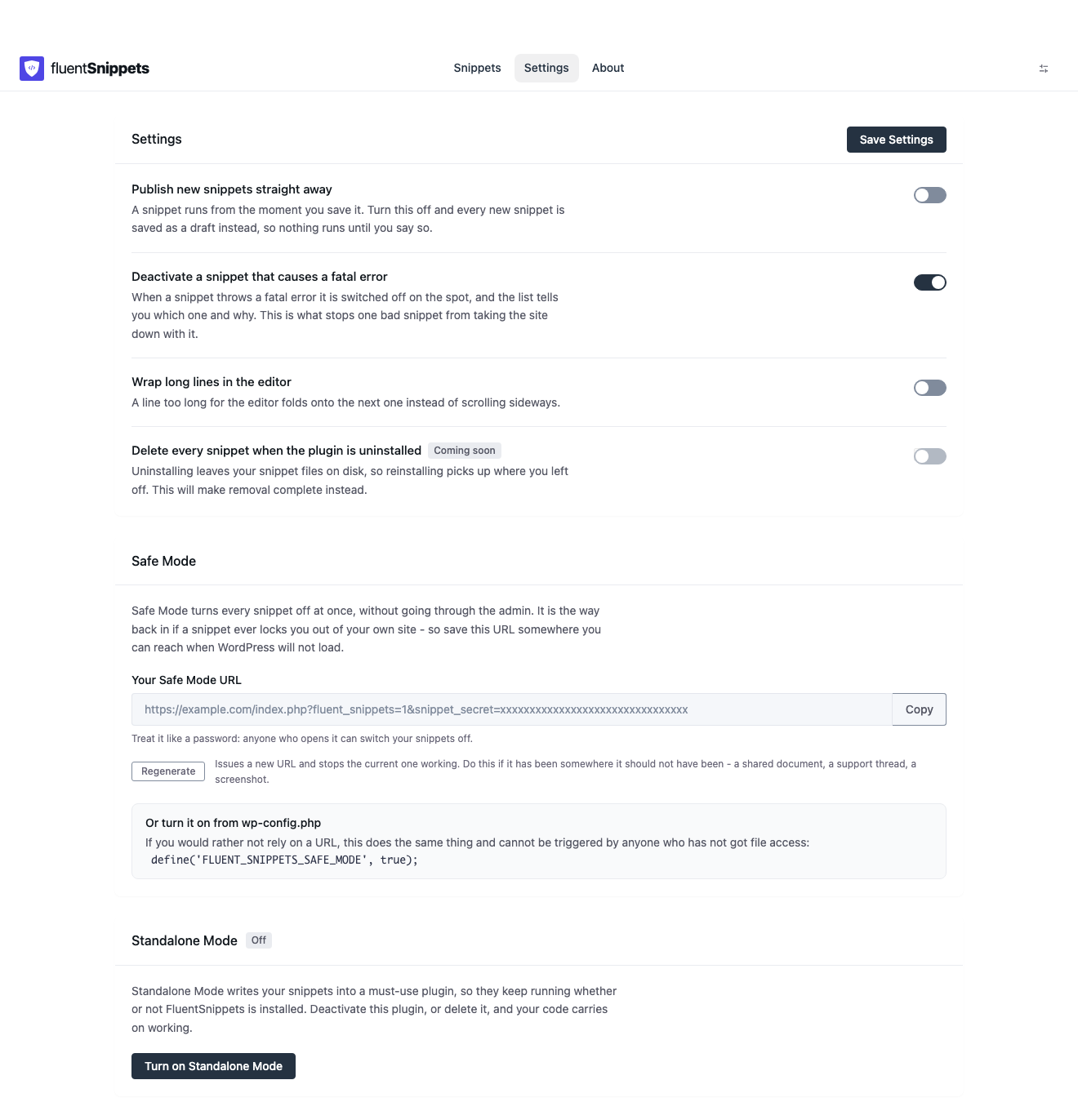
The Safe Mode URL
FluentSnippets → Settings → Safe Mode shows a URL unique to your site:
https://example.com/index.php?fluent_snippets=1&snippet_secret=<your-secret-key>Visiting it disables every snippet immediately and redirects you to the FluentSnippets admin screen. You do not need to be logged in for it to work, which is the entire point. It has to work when the admin is unreachable.
Copy this URL somewhere you can reach without your site: a password manager, a note on your phone, the project README. Fetching it from the settings screen is no help if the settings screen is what is broken.
The secret in that URL is a kill switch that needs no login. Anyone who has it can disable your site's custom code. Treat it like a password: do not paste it into a public issue, a screenshot, or a support forum.
The secret is stored in the generated index.php in your storage directory, which the plugin’s
.htaccess blocks from direct web access. See Installation.
The wp-config.php constant
If you cannot reach the site over HTTP at all, but you do have file access, add this to
wp-config.php:
define( 'FLUENT_SNIPPETS_SAFE_MODE', true );Snippets stop running from the next request. Remove the line to re-enable them.
The two methods differ in an important way:
| Behaviour | Safe Mode URL | FLUENT_SNIPPETS_SAFE_MODE |
|---|---|---|
| Needs admin access | No | No, but needs file access |
| How you turn it off | A button on the settings screen | Delete the line from wp-config.php |
| Survives a file edit | Yes, it is stored in the index | It is the file edit |
| Good for | Emergencies, and short diagnostics | Staging sites, and locked-out-of-HTTP situations |
Because the constant cannot be undone from the admin, it is the safer choice on a site you are handing to someone else: they cannot accidentally re-enable snippets by clicking something.
Turning Safe Mode back off
If you used the URL, open FluentSnippets in the admin. A banner tells you Safe Mode is on and offers to disable it. Fix the offending snippet first, by setting it to draft or correcting the code, before switching snippets back on, or you will be locked out again immediately.
If you used the constant, delete the line from wp-config.php.
What Safe Mode actually stops
With Safe Mode on:
- No snippet of any type is loaded or run.
- The
[fluent_snippet]shortcode rendersSnippets are disabledfor administrators and nothing for everyone else. - The error handler is not registered, because there are no snippets running to blame.
- The admin screens still work normally. You can read, edit, save and delete snippets while Safe Mode is on; they just do not execute.
That last point is what makes it useful: Safe Mode is not a lockdown, it is a pause. Everything you need to fix the problem is still available.
Disabling snippets from code
There is a third route, meant for programmatic use rather than emergencies:
add_filter( 'fluent_snippets/run_snippets', '__return_false' );This has the same effect as Safe Mode, and it is the hook to use when you want snippets off under a
condition you decide: during a WP-CLI run, on a particular environment, or inside a test suite. It
has to be registered before plugins_loaded priority 9, so it belongs in a must-use plugin or
wp-config.php, not in a snippet.
See Constants and hooks.
A recovery checklist
When a site is down and you suspect a snippet:
- Visit the Safe Mode URL. The site should come back.
- Open FluentSnippets and look for a row marked Paused with an
ERRORbadge. If there is one, that was the culprit and it is already off. - If nothing is paused, set the snippets you changed most recently to draft. Updated At descending in Table view tells you which those are.
- Turn Safe Mode off.
- Re-publish snippets one at a time, checking the site between each.