A site with six snippets does not need organising. A site with sixty does, and an agency reusing a library across clients definitely does. FluentSnippets gives you groups, tags, search and sorting.
Groups
A group is a virtual folder. Set one on the snippet editor by picking an existing group or typing a new name, and every snippet with that group is listed together.
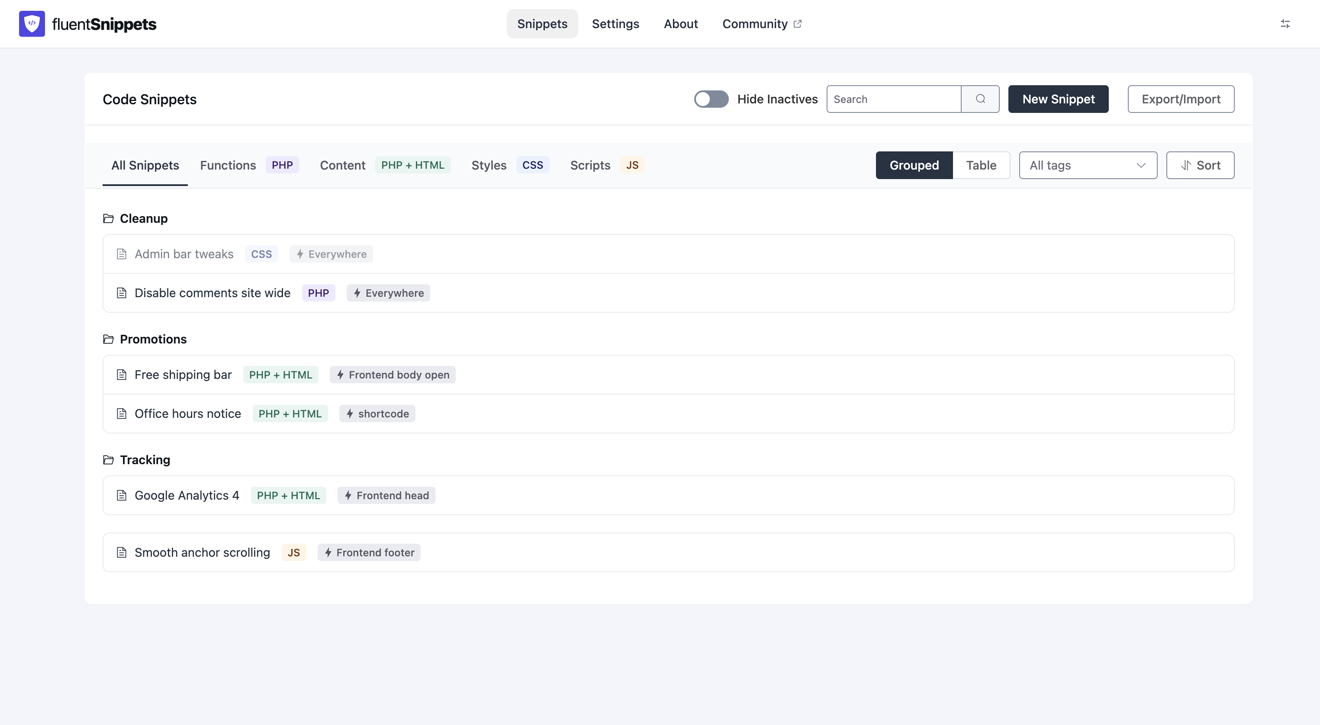
Groups are just a label in the snippet’s file header, so there is nothing to create or delete separately. A group with no snippets in it stops existing. Snippets without a group appear on their own below the folders.
Useful groupings in practice: by purpose (Tracking, Cleanup, Promotions), by the plugin they
extend (WooCommerce, FluentCRM), or by client on a multi-tenant setup.
Tags
Tags are free-form labels and a snippet can have several. Where a group answers “where does this live”, tags answer “what is this about”, and they cut across groups.
Filter the list to one tag with the All tags dropdown at the top right.
Search
The search box filters as you type across the snippet’s name, description, tags and group. It is a fuzzy match, so a partial or slightly wrong spelling still finds the snippet.
This is the best argument for filling in the description field. A snippet called “Fix” is unfindable; one described as “stops WooCommerce emailing the admin on every order” is not.
The two views
Grouped shows folders, as above. Table shows a flat, sortable table with description, type, run location and priority, tags and last-updated time in columns.
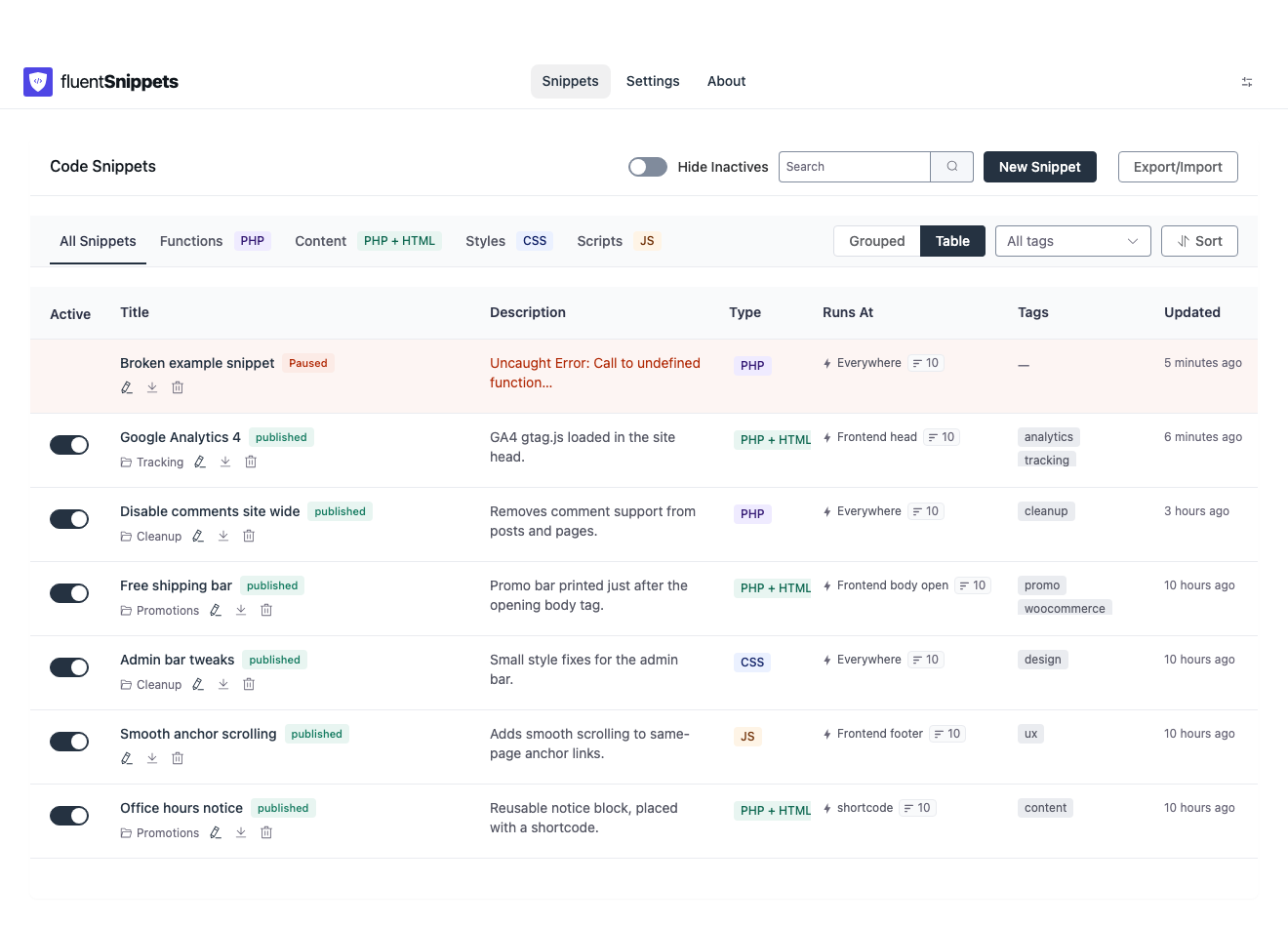
Your choice of view is remembered in your browser, per user.
Sorting
The Sort button offers:
| Sort by | Ascending / Descending |
|---|---|
| Name | yes |
| Created At | yes |
| Updated At | yes |
| Priority | yes |
Sorting by Updated At descending is the quickest way to answer “what did I change last week”.
Hide Inactives
The Hide Inactives toggle removes draft snippets from the list, leaving only what is actually running. When it hides anything, a line at the bottom tells you how many are hidden so you do not forget they exist.
Like the view choice, this is remembered in your browser.
Filtering by type
The tabs under the toolbar (All Snippets, Functions, Content, Styles, Scripts) filter by snippet type.
Per-row actions
Each row in either view offers:
| Action | What it does |
|---|---|
| Status toggle | Switches between published and draft immediately, without opening the snippet |
| edit | Opens the snippet editor |
| delete | Deletes the snippet file, after a confirmation |
| Group | Shows the group, if the snippet has one |
| Run location | Shows where the snippet runs |
| Download | Exports that one snippet as a JSON file |
Download produces the same format as a full export, so a single downloaded snippet can be imported into another site on its own. See Import and export.
Deleting a snippet deletes its file. There is no trash and no undo. If you might want it back, use Download first, or switch the snippet to draft instead of deleting it, since a draft costs nothing at runtime.
Naming that stays useful
The snippet name becomes the filename, so it is also what you will see in Git diffs and in exports. A few habits that pay off:
- Describe the effect, not the mechanism:
Disable comments site wide, notremove_post_type_support. - Put the subject first so an alphabetical sort groups related snippets:
WooCommerce: hide SKU,WooCommerce: reorder tabs. - Only the first four words go into the filename, so front-load the distinguishing part.