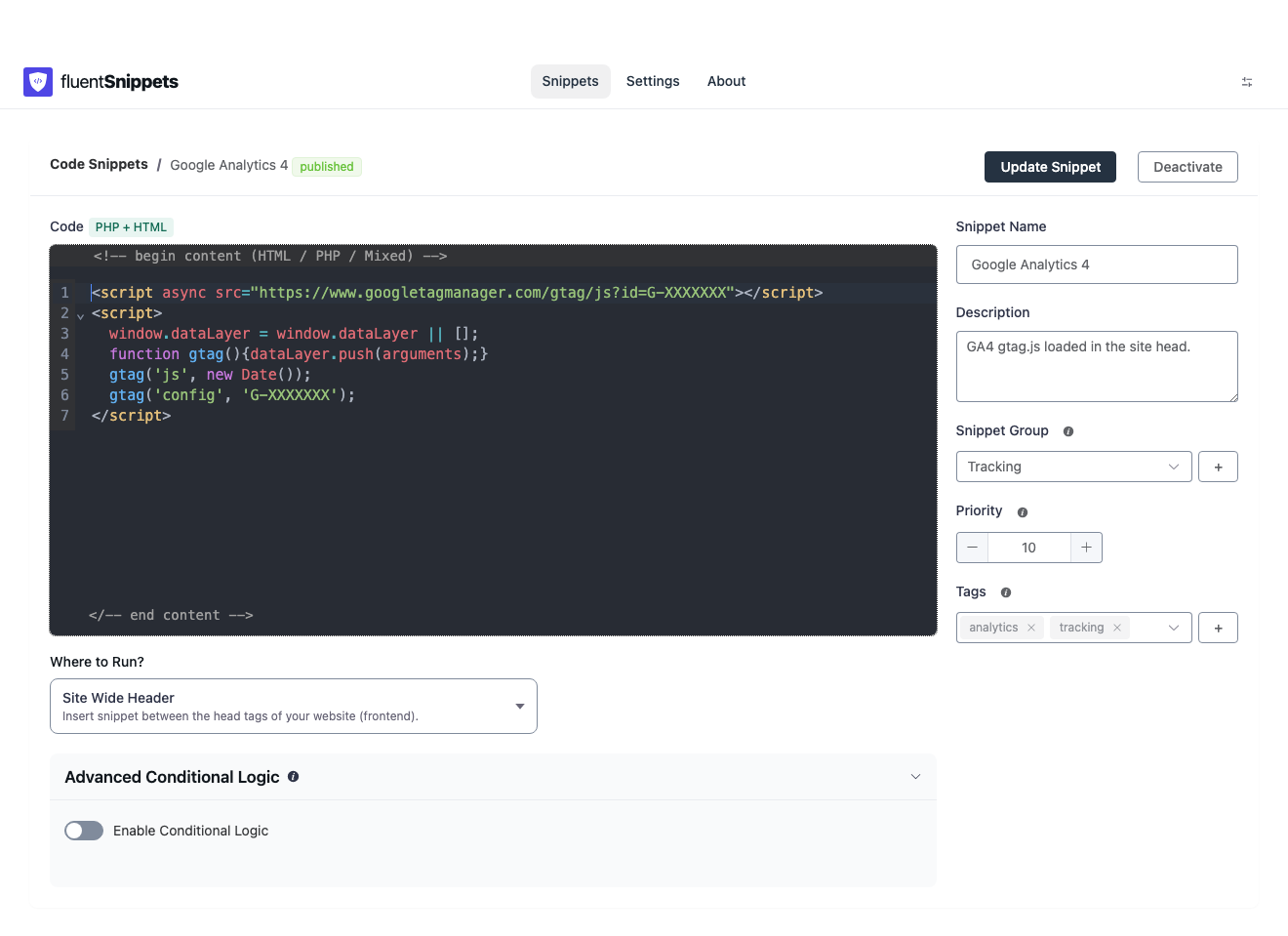
Open FluentSnippets in the admin sidebar and click New Snippet.
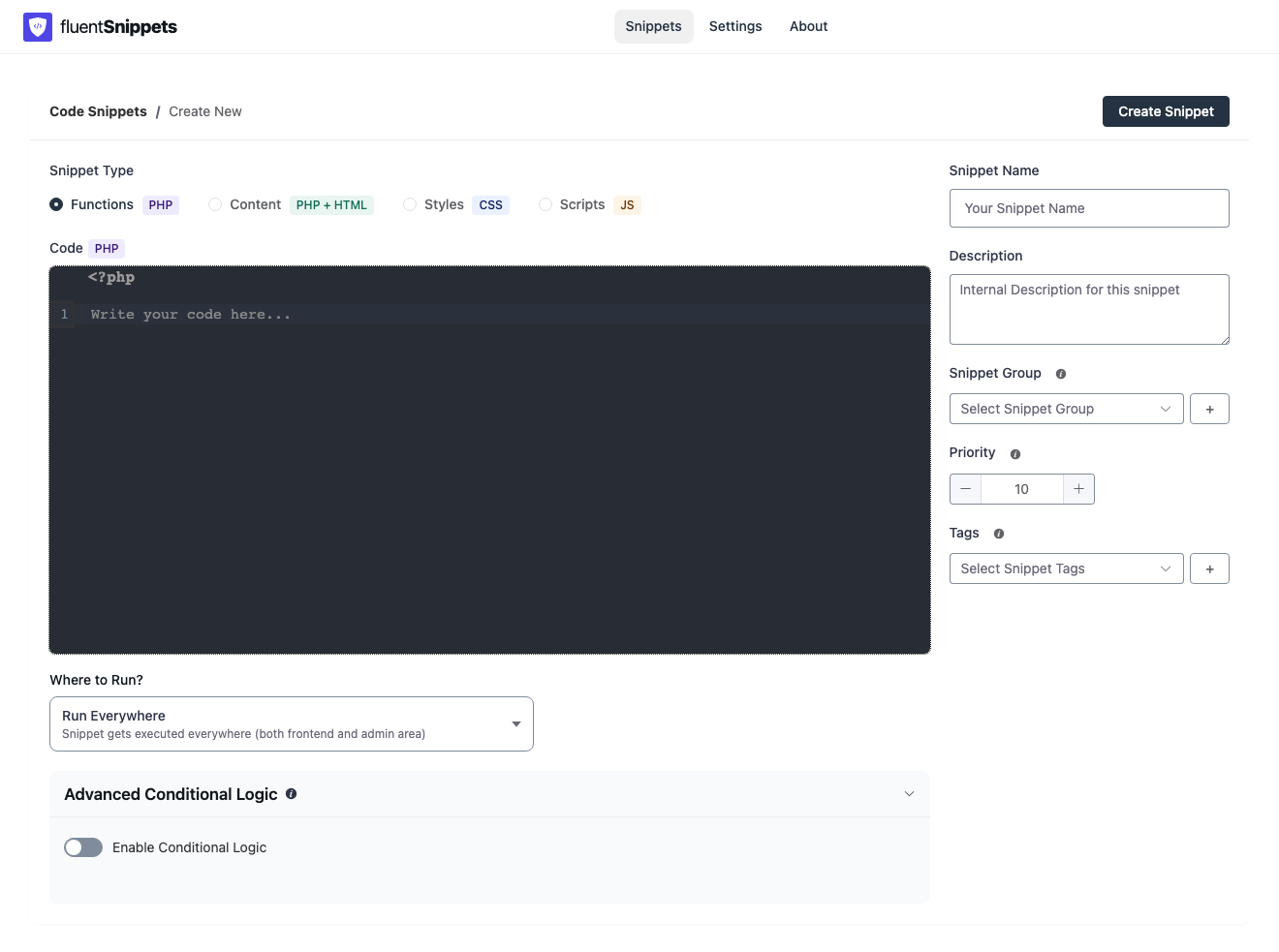
The fields
Snippet type
Pick one of Functions, Content, Styles or Scripts. The type decides which language the editor highlights and which run locations are offered. You cannot change the type after the snippet is created, so if you pick wrong, create a new snippet and delete the old one.
Snippet types explains the differences.
Code
Write only the code itself. FluentSnippets adds the surrounding wrapper for you:
- For a Functions snippet, it writes the opening
<?phptag. Do not add your own; the editor refuses to save if you do. - For Styles and Scripts, it writes the
<style>or<script>element. Do not paste your code wrapped in one; saving is refused with an explanation. - For Content, write whatever mix of HTML and PHP you need, using
<?php … ?>where you want to drop into PHP.
The editor is CodeMirror with syntax highlighting per language. Line wrapping is off by default and can be turned on in Settings.
Where to Run
Choose the point at which the snippet is loaded. The options change with the type: a Functions snippet can run everywhere, in the admin only, or on the front end only, while a Content snippet can go in the header, after the opening body tag, in the footer, before or after post content, or be placed by shortcode.
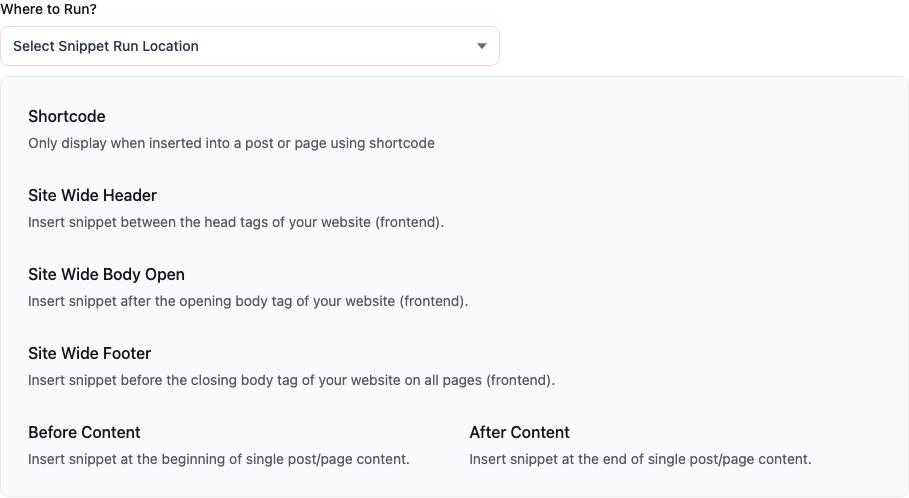
The full list per type is in Snippet types.
Snippet Name
Used in the list, in exports, and to build the filename. A snippet called “Google Analytics 4”
becomes 1-google-analytics-4.php, where the number is the count of snippet files at the time it was
created. Only the first four words are used in the filename.
Description
Free text for your own benefit. It shows in the list and in the table view, and it is the fastest way to remember in six months why a snippet exists. Worth filling in.
Snippet Group
A virtual folder. Snippets in the same group are listed together. Type a new name to create a group. See Organising snippets.
Priority
The WordPress hook priority the snippet is attached with. Lower runs earlier. Default is 10, minimum is 1. Use it when two snippets on the same hook need a defined order.
Tags
Free-form labels for filtering the list. A snippet can have several.
Save and activate
Click Create Snippet. Two things happen before the file is written:
- The metadata is validated. Name, type and run location are required.
- PHP is checked. For Functions snippets, the code is parsed and briefly evaluated to catch syntax errors and obvious runtime failures. If it fails, you get the error instead of a broken site.
Whether the snippet is live straight away depends on the Publish new snippets straight away setting. Out of the box new snippets are saved as drafts, so you can review before anything runs. Flip the toggle in the list, or the switch on the editor screen, to publish it.
While you are editing a snippet, FluentSnippets skips running that one snippet on the save request. So a snippet that breaks the admin does not lock you out of its own editor screen.
A worked example
Here is a Functions snippet that hides the WordPress admin bar for everyone:
- New Snippet → Functions
- Name it
Hide the admin bar - Paste:
add_filter( 'show_admin_bar', '__return_false' );- Leave Where to Run on Run Everywhere
- Create Snippet, then activate it
Load the front end and the admin bar is gone. Toggle the snippet off in the list and it comes back.
Nothing was written to your database, and wp-content/fluent-snippet-storage/1-hide-the-admin-bar.php
now holds the code.
Editing later
Click any snippet in the list to reopen it. The editor shows the same fields plus the current status, an Update Snippet button and a Deactivate button.