Snippets move between sites in two ways: through the built-in JSON export, or by copying the files. Both work; they suit different situations.
Exporting
Click Export/Import in the snippet list toolbar, then Export Snippets.
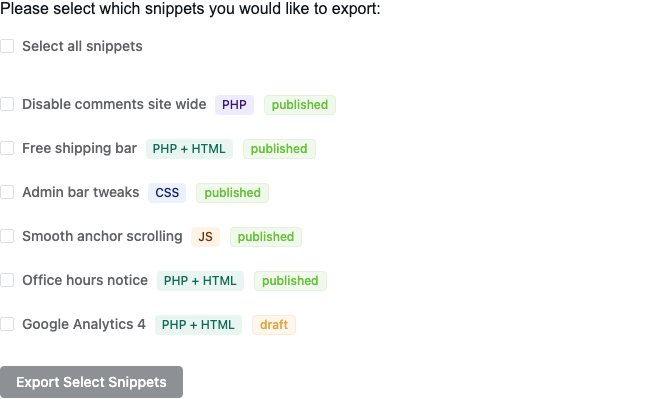
Tick the snippets you want and click Export Select Snippets. Your browser downloads a file named
like fluent-snippets-6-2026-08-11-14-32.json, holding the count and the export date.
To export a single snippet without opening this panel, use the Download action on its row in the list.
What is in the file
Each snippet is stored with its code base64-encoded, a checksum of that code, and the full set of metadata: name, description, type, run location, priority, status, group, tags and conditional logic.
{
  "file_type": "fluent_code_snippets",
  "version": "10.55",
  "snippets_count": 2,
  "snippets": [
    {
      "code": "PD9waHAKYWRkX2FjdGlvbiggJ2luaXQnLCAuLi4=",
      "code_hash": "b1946ac92492d2347c6235b4d2611184",
      "info": { "name": "Disable comments site wide", "type": "PHP", "run_at": "all", "…": "…" }
    }
  ]
}
The base64 is there so code survives JSON encoding intact, not for secrecy. Treat an export file as readable source, because it is.
Importing
Export/Import → Import Snippets, then drop the JSON file on the upload area or click to browse.
FluentSnippets checks each snippet in the file before writing anything:
- The file is one of ours. A JSON file without the
fluent_code_snippetsmarker is rejected outright. - The code matches its checksum. A snippet whose code has been altered since export is skipped
and reported as
Invalid code hash. - It is not already here. A snippet whose code is byte-identical to one already on the site is
skipped as
Snippet already exists. This makes re-importing the same file safe. - The metadata is valid, and for PHP, the code passes the same validation as a manual save.
Anything that fails is listed with the reason, and the rest still import. You get a table of results showing what landed and what did not.
Imports always arrive as drafts
Every imported snippet is created as a draft, regardless of the status it had when exported and regardless of your Publish new snippets straight away setting. Nothing you import starts running by itself.
Review each one, then publish individually or use Publish All Imported Snippets.
Importing a snippet file is importing executable code. Only import files you produced or from a source you trust, and read the code before publishing. The import screen says the same thing, and it means it.
Copying the files instead
Because snippets are plain files, you can also just move them:
rsync -av wp-content/fluent-snippet-storage/ \
          user@target:/path/to/wp-content/fluent-snippet-storage/
Then load any admin page on the target site once. FluentSnippets notices the files changed, rebuilds its index, and the snippets appear in the list with the status they had on the source.
This route differs from a JSON import in two ways worth knowing:
- Status is preserved. A snippet that was published arrives published, and starts running as soon as the index rebuilds. That is either exactly what you want for a deploy, or a surprise. Choose deliberately.
- No duplicate check. Filenames are numbered from the count of files present, so copying files into a directory that already has snippets can collide. Copy into an empty storage directory, or rename as you go.
Do not copy index.php between sites. It is generated, it records the site URL, and the target
rebuilds it anyway.
A reusable starter library
The common agency workflow:
- Build the snippets you want on every project on one site: analytics, hardening, admin cleanup, the footer tweaks you always make.
- Export them all to a single JSON file, and keep that file in your project template repo.
- On each new build, install FluentSnippets and import the file.
- Publish the ones that project needs and delete the rest.
Because everything imports as a draft, step 4 is a review rather than a cleanup.
Version control
For a site you deploy from Git, tracking the storage directory is usually better than exporting:
git add wp-content/fluent-snippet-storage/*.php
git commit -m "Add free shipping bar snippet"
Add wp-content/fluent-snippet-storage/index.php and the cached/ directory to .gitignore. Both
are generated, and the index records the site URL, so committing it creates noise and conflicts
between environments.
The snippet files themselves diff cleanly: a change to conditional logic shows up as a change to the
@condition line, and a code change shows as a code change.