How to add Search Console and Bing verification tags in WordPress without opening your theme
Google and Bing each give you one meta tag for the page head. Put both in one Content snippet on Site Wide Header.

Don’t open header.php. Don’t install Insert Headers and Footers just to hold two meta tags. Don’t treat Yoast or Rank Math as the only place those tags can live.
Search Console and Bing Webmaster Tools both offer an HTML meta tag for the page head. I keep them in one Content snippet on Site Wide Header. Theme updates cannot eat them. You can turn the row off later.
When this is the wrong post
If Yoast, Rank Math, or All in One SEO already has the Google or Bing webmaster field filled, leave it there. Don’t paste a second copy into a snippet.
If you already verified with a DNS TXT or CNAME record, stop. That path never needs a meta tag in WordPress.
If Site Kit already connected Search Console and the property shows Verified, don’t add Google’s meta tag again. Bing is separate. Only add Bing here if Bing still wants its own tag.
Install FluentSnippets
Get it from WordPress.org or from our get page.
In wp-admin go to Plugins → Add New. Search FluentSnippets. Click Install, then Activate.
No account. Open FluentSnippets in the left menu. You’re on the snippets list.
Both tags belong in the header, not a theme file
Open FluentSnippets. You should see the list, even if it’s empty.
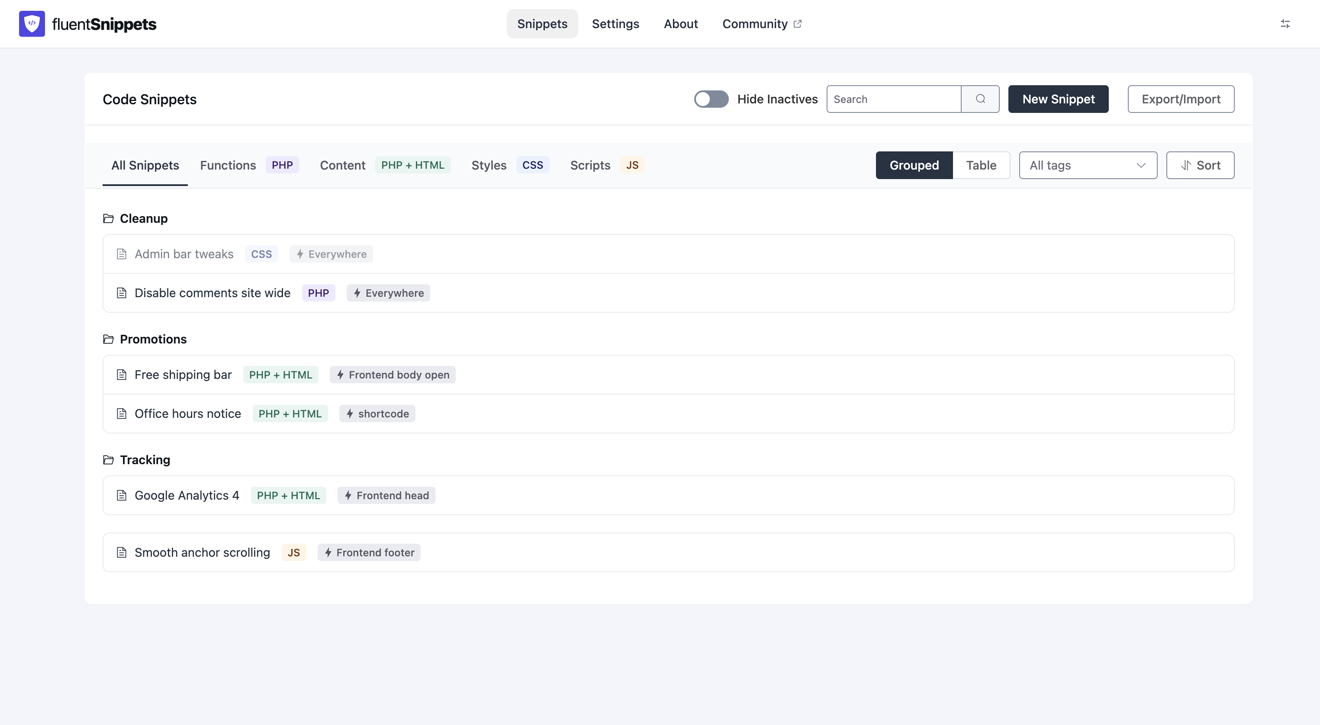
Click New Snippet.
Create New opens. Functions (PHP) is already selected. That’s for PHP. These verification lines are HTML, so switch to the green Content (PHP + HTML).
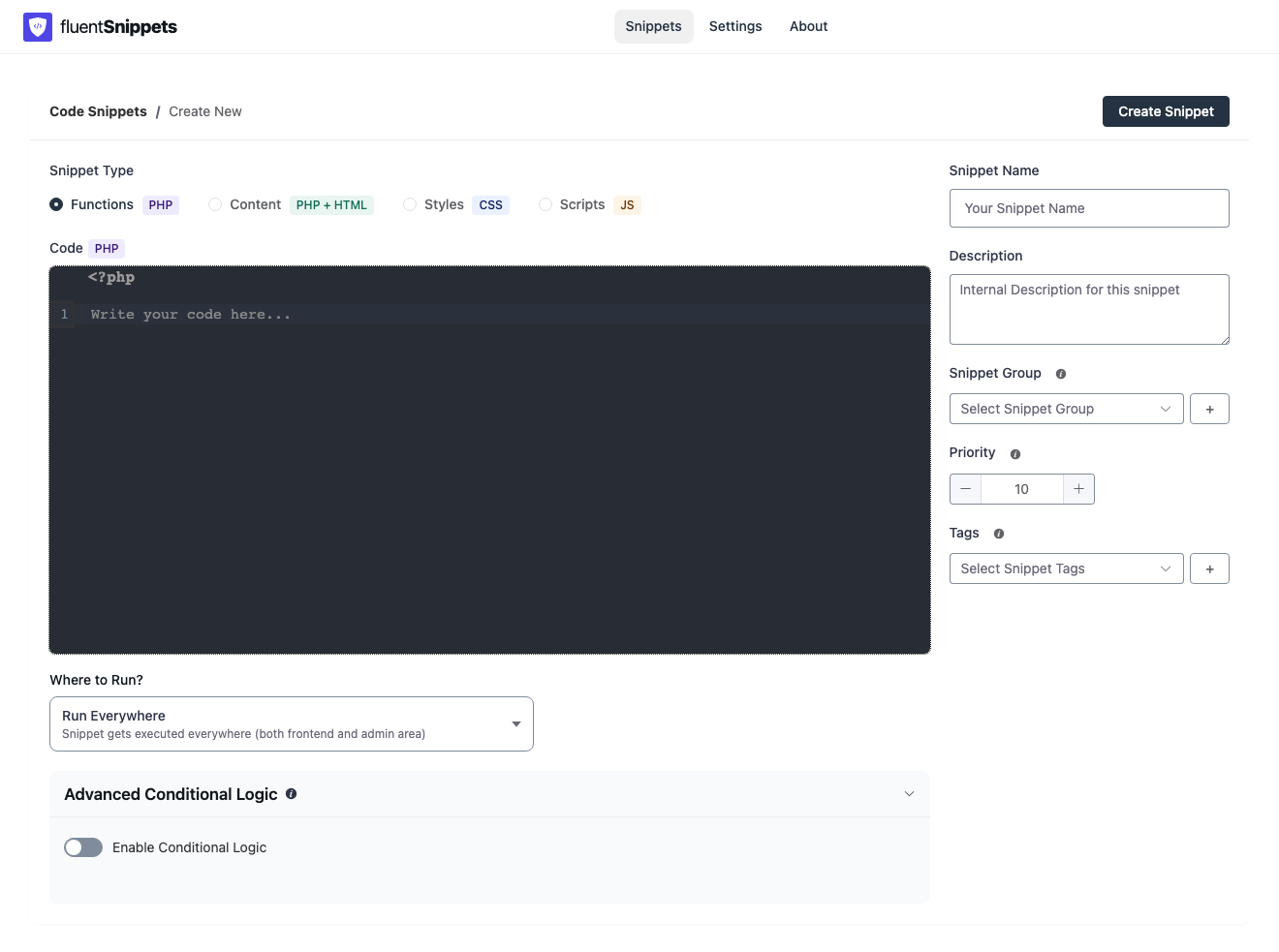
Name it Search Console and Bing verification. Description, group, and tags can wait.
Open Where to Run?.
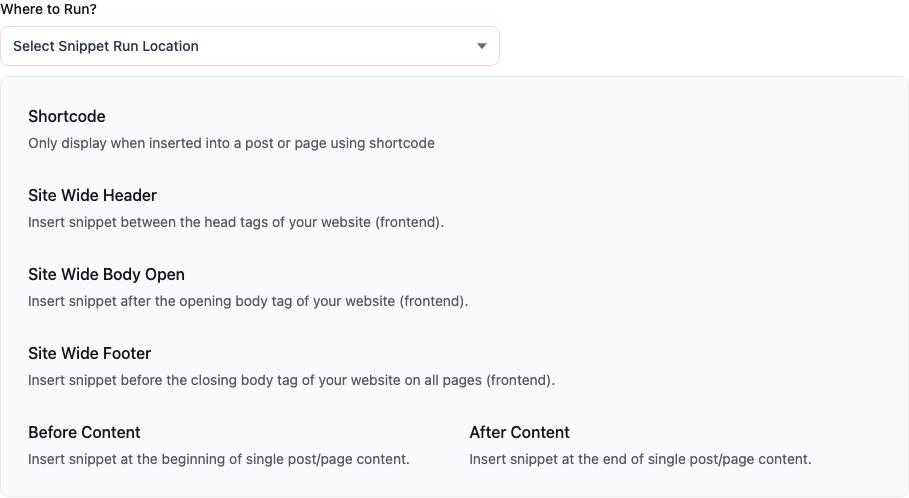
Click Site Wide Header.
Paste the two meta tags Google and Bing gave you
In Google Search Console, pick the HTML tag method and copy the meta line. In Bing Webmaster Tools, pick the meta tag method and copy that line too. Paste both into this one snippet. Swap the placeholder codes for the ones each console showed you.
<meta name="google-site-verification" content="YOUR_GOOGLE_CODE" />
<meta name="msvalidate.01" content="YOUR_BING_CODE" />
Keep the name attributes exactly as shown. Only the content values change. If you only need Google today, paste that one line and add Bing later in the same snippet.
Click Create Snippet. Check the paste. Publish it. You want the green published badge.
The list after it is on
Go back to the snippets list.
Confirm in view-source, then click Verify
Open any public page. View source. Search for google-site-verification and msvalidate.01. Both names should sit near the top of the page, inside the head.
Go back to Search Console and Bing. Click Verify. Leave the snippet published. Deactivating the row removes the tags and can drop the verification later on some properties.
One rule to keep
If Google or Bing asks for a meta tag in the page head, put both lines in one Content snippet on Site Wide Header. Skip the paste when an SEO plugin, Site Kit, or DNS already finished the job.
How to add header and footer code in WordPress for other head pastes. How to add Google Tag Manager without opening your theme when the next paste is a container, not a verification tag.