How to Add Header and Footer Code in WordPress (Without Editing Your Theme)
Google sent you a tag and said to paste it in the header. Put it in a snippet instead, so the next theme update can't eat it.

Google just mailed you a block of code and said “paste this in your header.” Facebook does the same thing. So does every chat widget you’ve ever tried.
If you’ve never opened a theme file, that sentence is useless. If you have, you already know the trap: the next theme update puts the original file back, and your tag is gone. Switch themes and it is gone even faster.
So I don’t put tracking code in the theme. I keep it in FluentSnippets, in a list I can turn off without digging through files.
We’ll add a Google Analytics 4 tag to the header. Then the same walk for a footer script, like a chat widget.
Install FluentSnippets
Get it from WordPress.org or from our get page.
In wp-admin go to Plugins → Add New. Search FluentSnippets. Click Install, then Activate.
No account. No wizard. A FluentSnippets item shows up in the left menu. Open that. You’re on the snippets list.
Add the header tag
I’m using Analytics because almost everyone gets that first email. A Facebook pixel, a Search Console meta tag, or any other “put this in the header” blob uses the same clicks. Only the paste changes.
Open FluentSnippets. You should see the list, even if it’s empty.
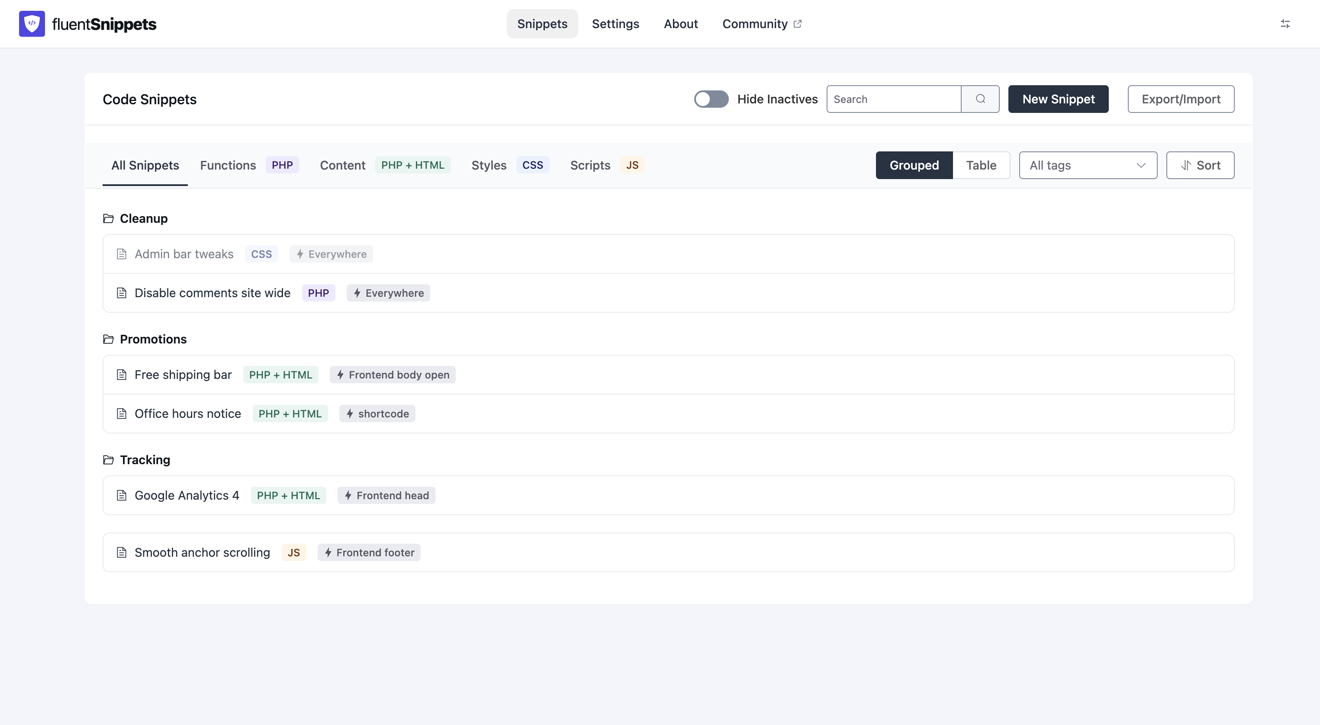
If this is a fresh install the list is empty. If you already have snippets they sit in groups like Tracking. The button is in the same place either way.
Click New Snippet.
The next screen is Create New. Four types sit across the top. Functions (PHP) is already selected. That’s for PHP. You’re pasting a tag, so switch to the green Content (PHP + HTML).
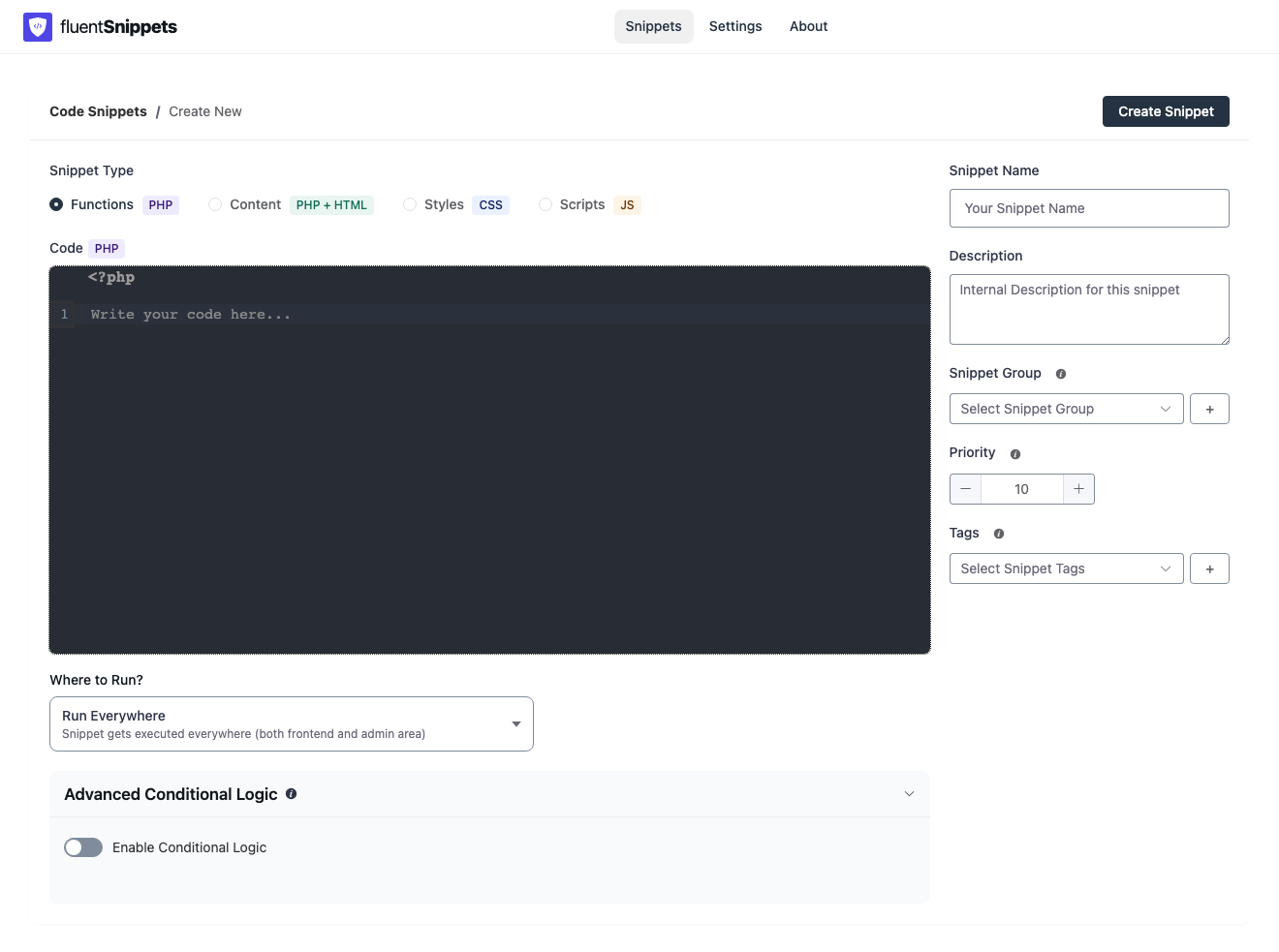
If you stay on Functions, the editor is waiting for PHP. The Google tag is HTML.
Name it something you’ll still understand in six months. Google Analytics 4 is fine. Description, group, and tags can wait.
Now find Where to Run? and open the list.
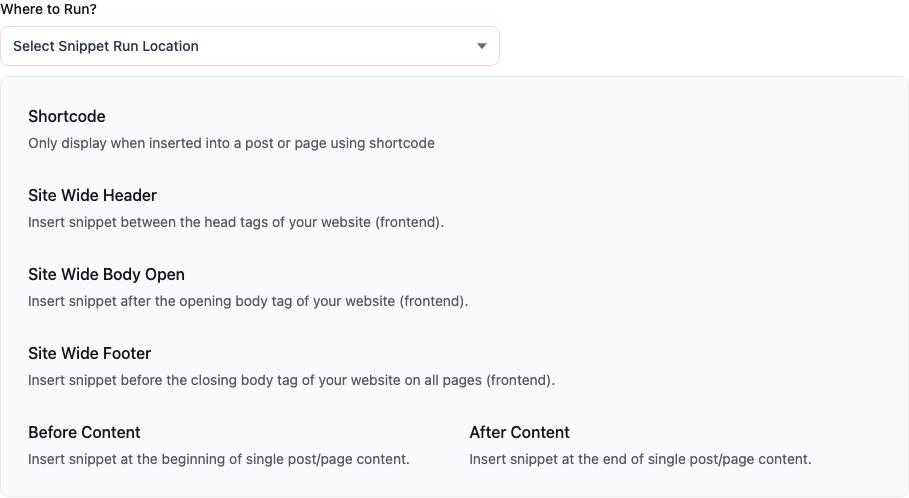
When a vendor says “header,” they don’t mean your logo. They mean a hidden strip at the top of every page, which is Site Wide Header. “Footer” is Site Wide Footer, the very bottom. Site Wide Body Open is the awkward middle one: just after the page starts. You only need that if they sent a second block. Google Tag Manager does.
Click Site Wide Header.
Paste what Google gave you into the big code box. If you’re following along, use this and swap both G-XXXXXXX for your measurement ID. You find that ID in the GA4 admin. It always starts with G-.
<script async src="https://www.googletagmanager.com/gtag/js?id=G-XXXXXXX"></script>
<script>
  window.dataLayer = window.dataLayer || [];
  function gtag(){dataLayer.push(arguments);}
  gtag('js', new Date());
  gtag('config', 'G-XXXXXXX');
</script>
Paste it as they sent it. Don’t wrap it in extra tags.
Search Console is the same header snippet with a shorter paste. Swap in the token they showed you:
<meta name="google-site-verification" content="YOUR_VERIFICATION_TOKEN" />Click Create Snippet in the top right. New snippets start as drafts, so nothing fires yet. Open it, check the paste, then publish. You want the green published badge next to the name.
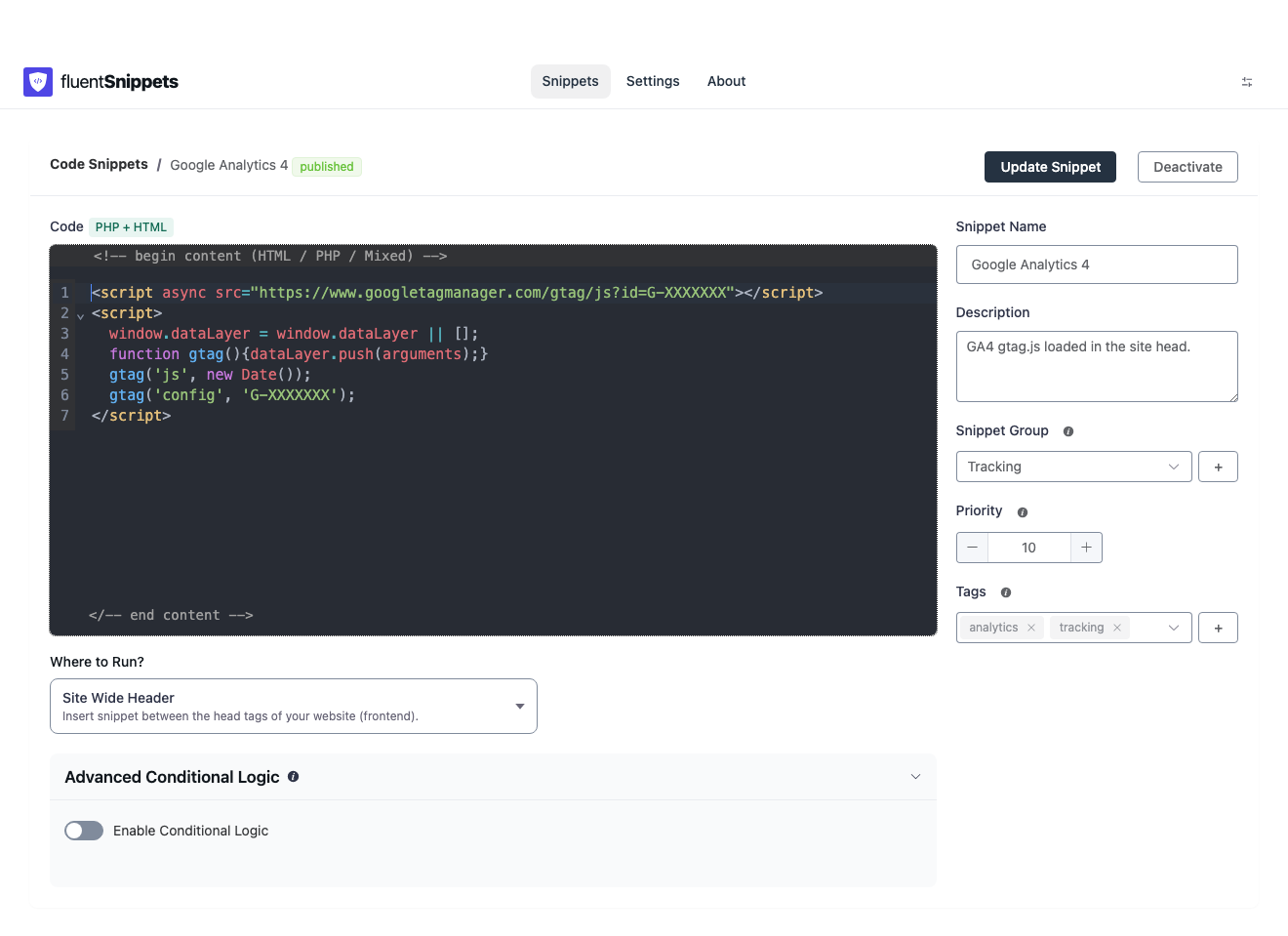
A theme update won’t touch this. The tag lives with the plugin, not in the theme folder.
Add a footer script
Chat tools and anything labelled “before the closing body tag” want the bottom of the page. Same plugin. Same screens. Different row in Where to Run?.
Go back to the snippets list. Click the dark navy New Snippet button again.
Create New opens. Functions (PHP) is selected again. Switch to the green Content (PHP + HTML).
Name it something you’ll recognize later. Chat widget works. Footer pixel works if that’s what they sent.
Open Where to Run?.
Click Site Wide Footer.
Paste the code the chat tool or vendor sent you into the big box. Swap any ID they told you to swap. Don’t wrap it.
Click Create Snippet. Check the paste. Publish it. You want the same green published badge.
You now have two rows in the list instead of two mystery edits in the theme.
If they sent two pieces
That’s usually Google Tag Manager. They send a script they want in the header, and a noscript block they want just after the page starts.
Make two snippets, the same way you just did.
First snippet: green Content (PHP + HTML), name it GTM header, Where to Run? → Site Wide Header, paste the script block. Publish it.
Second snippet: green Content (PHP + HTML) again, name it GTM noscript, Where to Run? → Site Wide Body Open, paste the noscript block. Use the same container ID in both. It starts with GTM-. Publish that one too.
Old themes sometimes don’t have a slot “just after the page starts.” If Site Wide Body Open prints nothing, put the noscript in Site Wide Header so you don’t lose it. Not where Google asked. Better than missing.
Skip your own traffic (optional)
You log in and refresh the homepage twenty times. Analytics doesn’t need those hits.
On the snippet, open Advanced Conditional Logic. Turn the switch on. Add one rule: Logged-in equal False. In English: run this only when the visitor is not logged in.
Skip this if you don’t care. The tag works without it.
When you want it off
Open FluentSnippets, find the row, deactivate it. You don’t have to remember which theme file you touched in 2024.
Install from wordpress.org/plugins/easy-code-manager if you haven’t yet. Start with the header snippet. Add a footer one if they also sent footer code.