How to allow SVG uploads in WordPress without an SVG plugin
WordPress blocks .svg in Media. One Functions snippet adds the file type. It does not sanitize the file.

Don’t install Safe SVG or SVG Support for one checkbox. Don’t open functions.php and hope the next theme update leaves your paste alone. WordPress refuses .svg in Media → Add New on purpose. A short Functions snippet adds the file type.
I keep it in FluentSnippets. One row. Run Everywhere. When I want the block back, I turn the row off.
When this is the wrong post
If authors, clients, or anyone you do not fully trust can upload files, stop. An SVG can carry script. This paste only adds the mime type. It does not clean the file.
If you already run a plugin that allows SVG and sanitizes on upload, leave it. Don’t stack a second allow on top.
If you only need one logo and you can drop a PNG or WebP instead, do that. Skip the snippet.
Install FluentSnippets
Get it from WordPress.org or from our get page.
In wp-admin go to Plugins → Add New. Search FluentSnippets. Click Install, then Activate.
No account. Open FluentSnippets in the left menu. You’re on the snippets list.
Leave Functions selected
This is PHP, the same kind of code that used to live in functions.php. Functions (PHP) is already selected when you arrive. Leave it.
Open FluentSnippets.
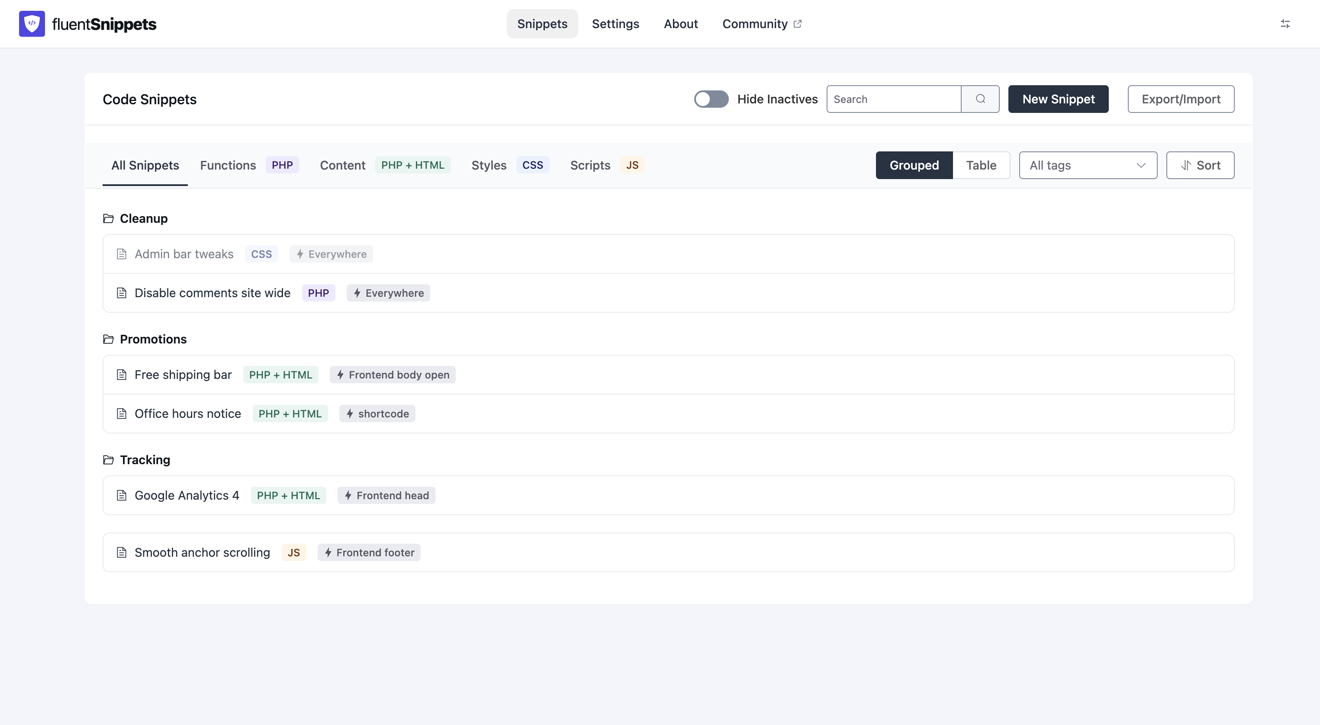
Click New Snippet.
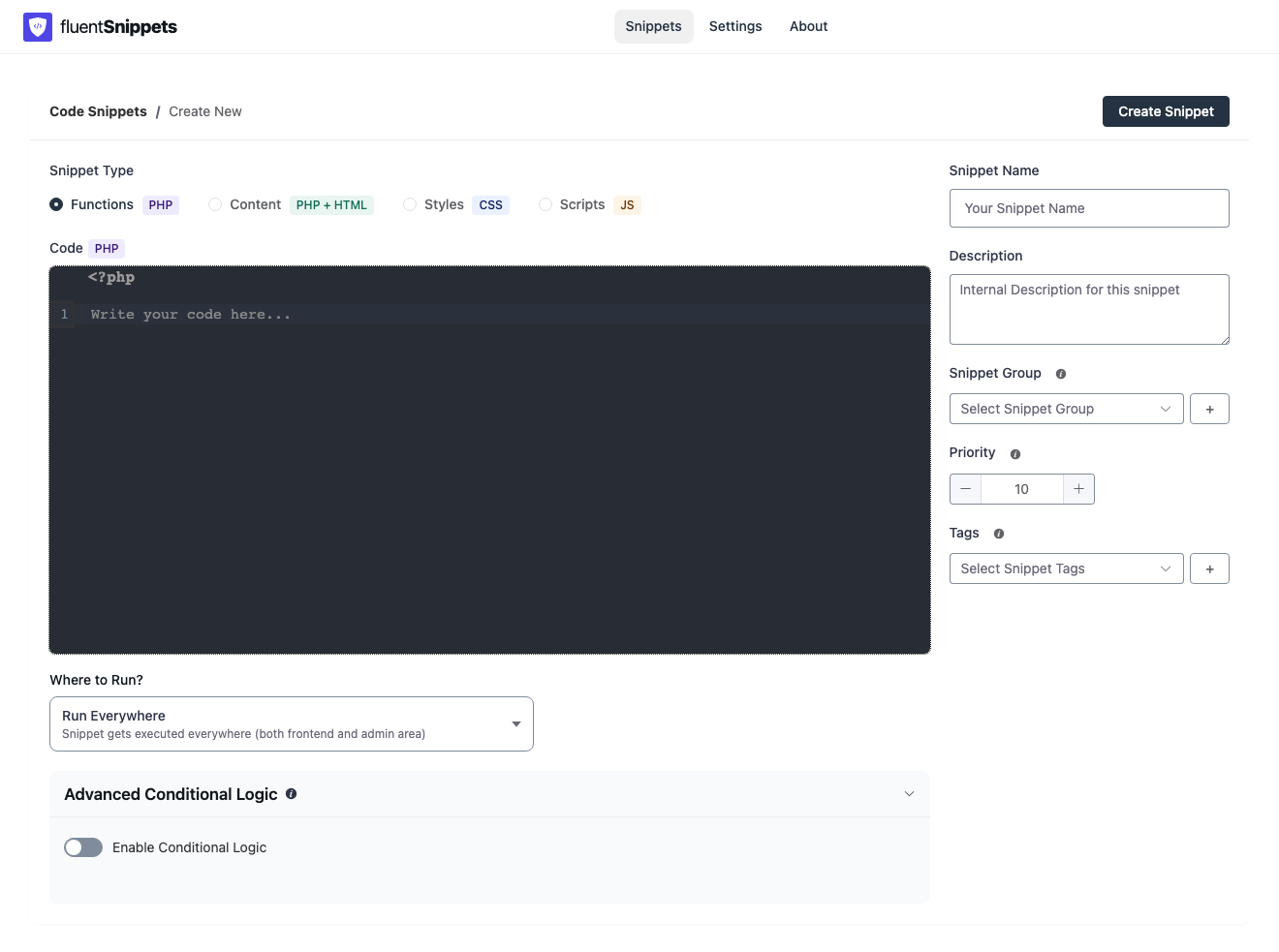
<?php on the first line. Don't type a second one. Where to Run? is already Run Everywhere. Leave that too.Name it Allow SVG uploads. That matches the row you’ll see in the list later.
Paste the PHP
Paste under that gray first line. Don’t wrap it. Don’t add another <?php.
This paste tells WordPress that .svg is an allowed image type, and it keeps the second filetype check from rejecting the upload.
add_filter( 'upload_mimes', function ( $mimes ) {
    $mimes['svg'] = 'image/svg+xml';
    return $mimes;
} );

add_filter( 'wp_check_filetype_and_ext', function ( $data, $file, $filename, $mimes ) {
    if ( ! empty( $data['ext'] ) && ! empty( $data['type'] ) ) {
        return $data;
    }

    $filetype = wp_check_filetype( $filename, $mimes );

    if ( $filetype['ext'] === 'svg' ) {
        $data['ext']  = 'svg';
        $data['type'] = 'image/svg+xml';
    }

    return $data;
}, 10, 4 );
Click Create Snippet. Then publish it. You want the green published badge.
The list after it is on
Go back to the snippets list.
Open Media → Add New. Pick an .svg you trust. The upload should finish. Open the attachment. Confirm the file is there before you drop it into a page.
If WordPress still says the file type is not allowed, the snippet is still a draft. Publish it, then try again.
One rule to keep
If you need SVG in Media and every uploader is someone you trust, add the file type in a Functions snippet. If untrusted people can upload, use a sanitizing SVG plugin instead, or skip SVG.
How to stop editing functions.php when the next paste is another functions.php habit. Functions snippets for run locations and why a second <?php is refused.