How to add Google Tag Manager in WordPress without opening your theme
Google gave you two blocks. Put them in two snippets, not in header.php, Site Kit, or a one-job plugin.

Don’t open header.php. Don’t install a “GTM for WordPress” plugin. Don’t hope Site Kit already dropped both pieces for you.
Google Tag Manager still sends two blocks. One script they want at the top of every page. One noscript iframe they want just after the page starts. If you only paste the script, the install is incomplete.
I keep both in FluentSnippets. Two rows. Two off switches. A theme update cannot eat them.
When this is the wrong post
If Google sent you a measurement ID that starts with G-, you want the header and footer walk. That’s Analytics, one paste.
If Site Kit (or another plugin) already added Tag Manager, don’t paste a second copy. You’ll fire the container twice.
If you don’t have a container yet, make one at tagmanager.google.com first. Click the container ID. Copy both blocks. Keep them. You need both.
Then come back.
Install FluentSnippets
Get it from WordPress.org or from our get page.
In wp-admin go to Plugins → Add New. Search FluentSnippets. Click Install, then Activate.
No account. Open FluentSnippets in the left menu. You’re on the snippets list.
The header script is a contract, not a banner
Open FluentSnippets. You should see the list, even if it’s empty.
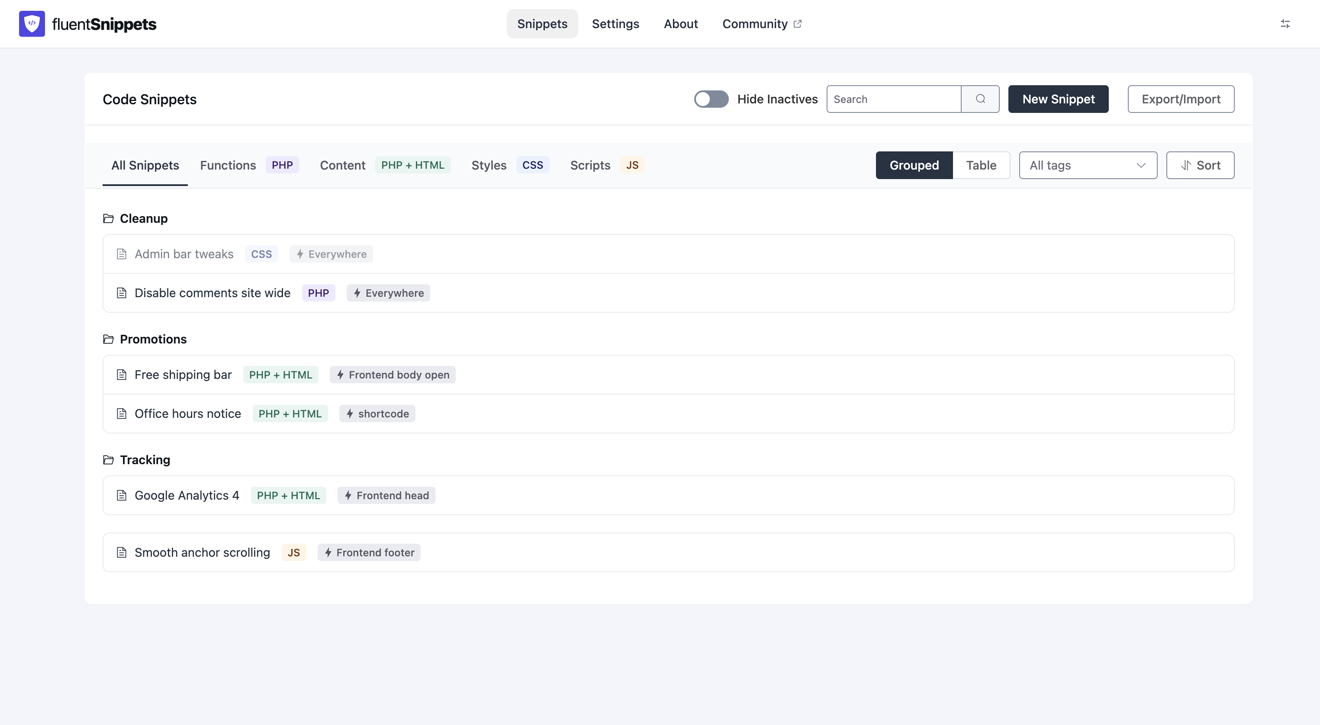
Click New Snippet.
Create New opens. Functions (PHP) is already selected. That’s for PHP. The Tag Manager script is HTML, so switch to the green Content (PHP + HTML).
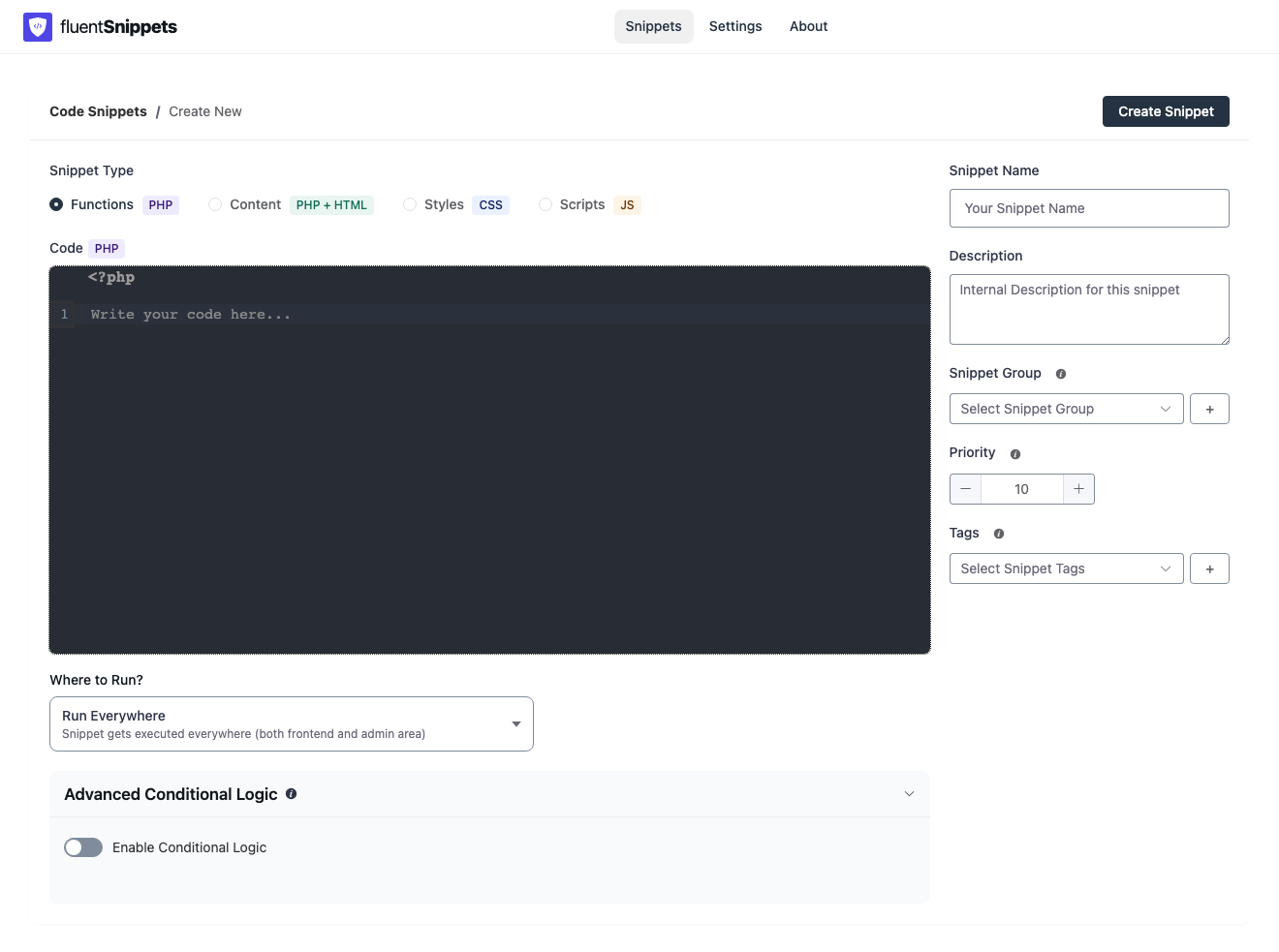
Name it GTM header. Description, group, and tags can wait.
Open Where to Run?.
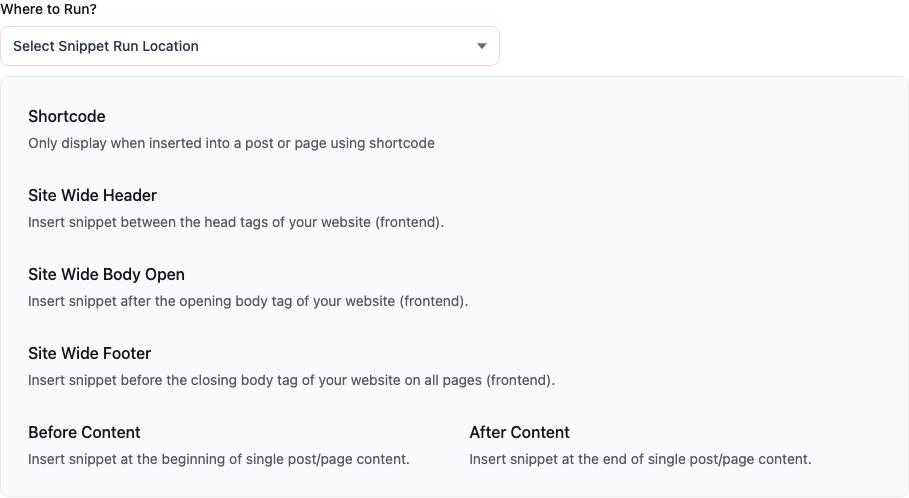
Click Site Wide Header.
Paste the first block Google showed you. That’s the script. If you’re following along, use this and swap every GTM-XXXXXX for your container ID. It always starts with GTM-.
<script>(function(w,d,s,l,i){w[l]=w[l]||[];w[l].push({'gtm.start':
new Date().getTime(),event:'gtm.js'});var f=d.getElementsByTagName(s)[0],
j=d.createElement(s),dl=l!='dataLayer'?'&l='+l:'';j.async=true;j.src=
'https://www.googletagmanager.com/gtm.js?id='+i+dl;f.parentNode.insertBefore(j,f);
})(window,document,'script','dataLayer','GTM-XXXXXX');</script>
Paste it as they sent it. Don’t wrap it.
Click Create Snippet. Check the paste. Publish it. You want the green published badge.
That’s the first snippet.
The noscript block sits just after the page starts
Go back to the snippets list.
Click New Snippet again.
Same Create New screen. Functions (PHP) is selected again. Switch to green Content (PHP + HTML) again.
Open Where to Run? again.
Click Site Wide Body Open.
Paste the second block. That’s the noscript iframe. Same container ID as the header snippet.
<noscript>
  <iframe src="https://www.googletagmanager.com/ns.html?id=GTM-XXXXXX"
          height="0" width="0" style="display:none;visibility:hidden"></iframe>
</noscript>
Click Create Snippet. Publish it.
You now have two rows. Header script. Body-open noscript. One list.
Old themes sometimes don’t have a slot “just after the page starts.” If Site Wide Body Open prints nothing, put the noscript in Site Wide Header so you don’t lose it. Not where Google asked. Better than missing.
Check both blocks on a public page
View source on a public page. The script should sit near the top of the page. The ns.html iframe should sit just after the page starts.
Then run Tag Manager Preview on that same URL. If Preview sees the container, you’re done.
When you want it off, open FluentSnippets and deactivate the row. You don’t have to remember which theme file you touched.
How to add header and footer code without editing your theme if you only have a G- tag. Official install notes: Install a web container.