How to disable WordPress comments without a comments plugin
Discussion settings do not kill the form everywhere. One Functions snippet does, without functions.php or another plugin.

Don’t open Settings → Discussion and uncheck a couple of boxes. That hides new comments on some posts and leaves the form, the Comments menu, and spam on everything else. Don’t install Disable Comments for one job. Don’t paste this into functions.php. The next theme update puts the file back.
I keep it in FluentSnippets. One Functions snippet. Run Everywhere. When I want comments back, I turn the row off.
When this is the wrong post
If you still want comments on posts, stop here. This snippet closes comments on the whole site.
If you only want them off pages, or only on one post type, this paste is too blunt. Don’t use it.
If a comments plugin is already doing the job and you like it, leave it. Don’t stack a second kill switch.
Install FluentSnippets
Get it from WordPress.org or from our get page.
In wp-admin go to Plugins → Add New. Search FluentSnippets. Click Install, then Activate.
No account. Open FluentSnippets in the left menu. You’re on the snippets list.
Leave Functions selected
This is PHP, not a tracking tag. Functions (PHP) is already selected when you arrive. Leave it.
Open FluentSnippets.
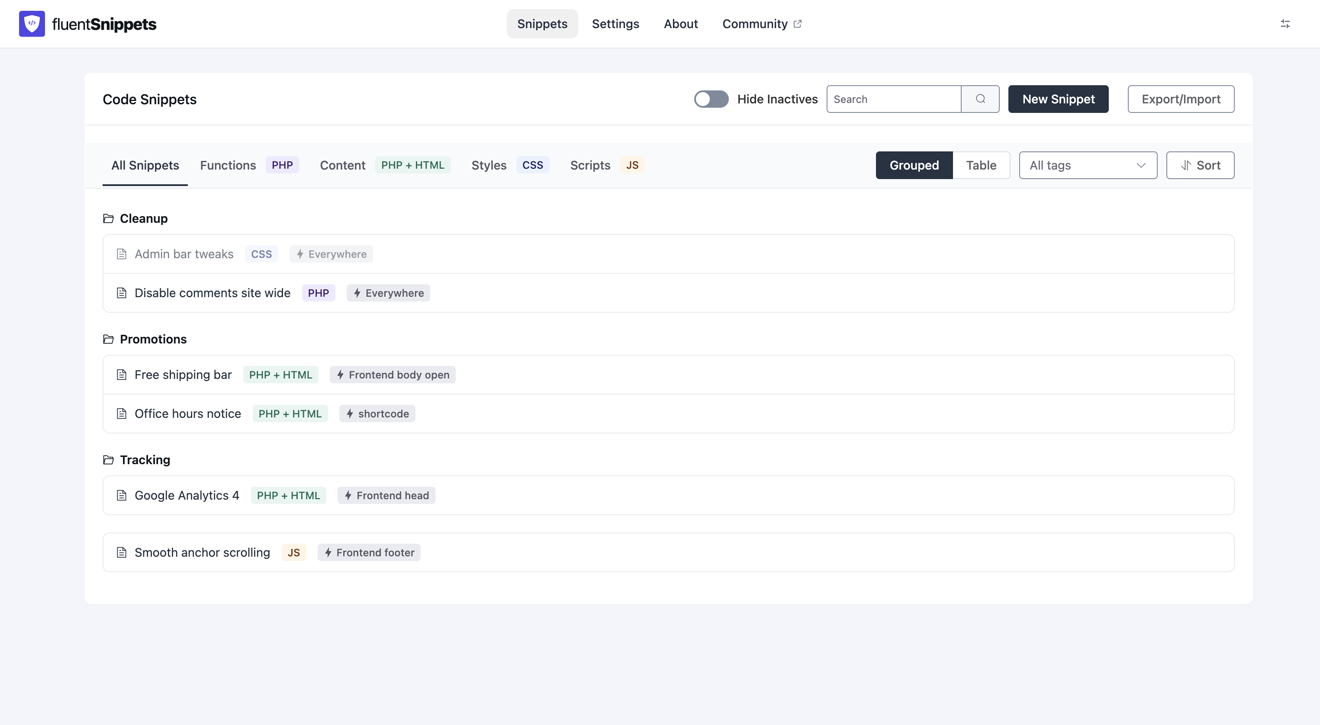
Click New Snippet.
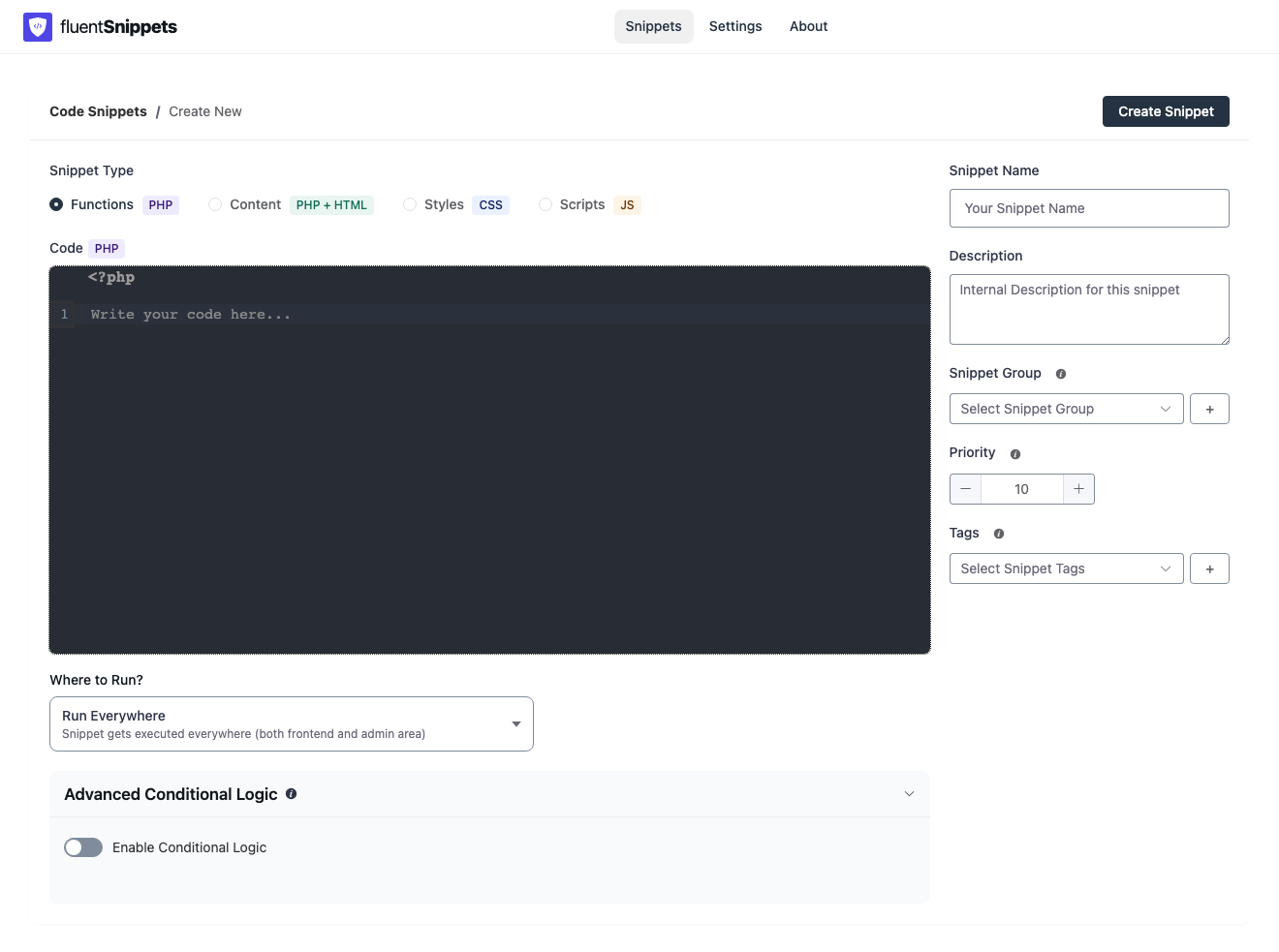
<?php on the first line. Don't type a second one. Where to Run? is already Run Everywhere. Leave that too.Name it Disable comments site wide. That matches the row you’ll see in the list later.
Paste the PHP
Paste under that gray first line. Don’t wrap it.
This paste closes the form, hides old comments, and takes Comments out of the admin menu.
add_action( 'init', function () {
    remove_post_type_support( 'post', 'comments' );
    remove_post_type_support( 'page', 'comments' );
} );

add_filter( 'comments_open', '__return_false', 20 );
add_filter( 'pings_open', '__return_false', 20 );
add_filter( 'comments_array', '__return_empty_array', 10 );

add_action( 'admin_menu', function () {
    remove_menu_page( 'edit-comments.php' );
} );
Click Create Snippet. Then publish it.
Frontend Only would leave the Comments menu. Admin Only would leave the form on posts. That is why this one stays on Run Everywhere.
The list after it is on
Go back to the snippets list.
Open a post on the front of the site. The form should be gone. Open wp-admin. Comments should be gone from the left menu.
If either is still there, the snippet is still a draft. Publish it.
When you want comments back
Open FluentSnippets. Find the row. Deactivate it. You don’t have to remember which theme file you touched, and you don’t have to uninstall a comments plugin.
How to add header and footer code without editing your theme if you have a tag to paste, not PHP. Functions snippets if you want the short version of why we leave a second <?php off.